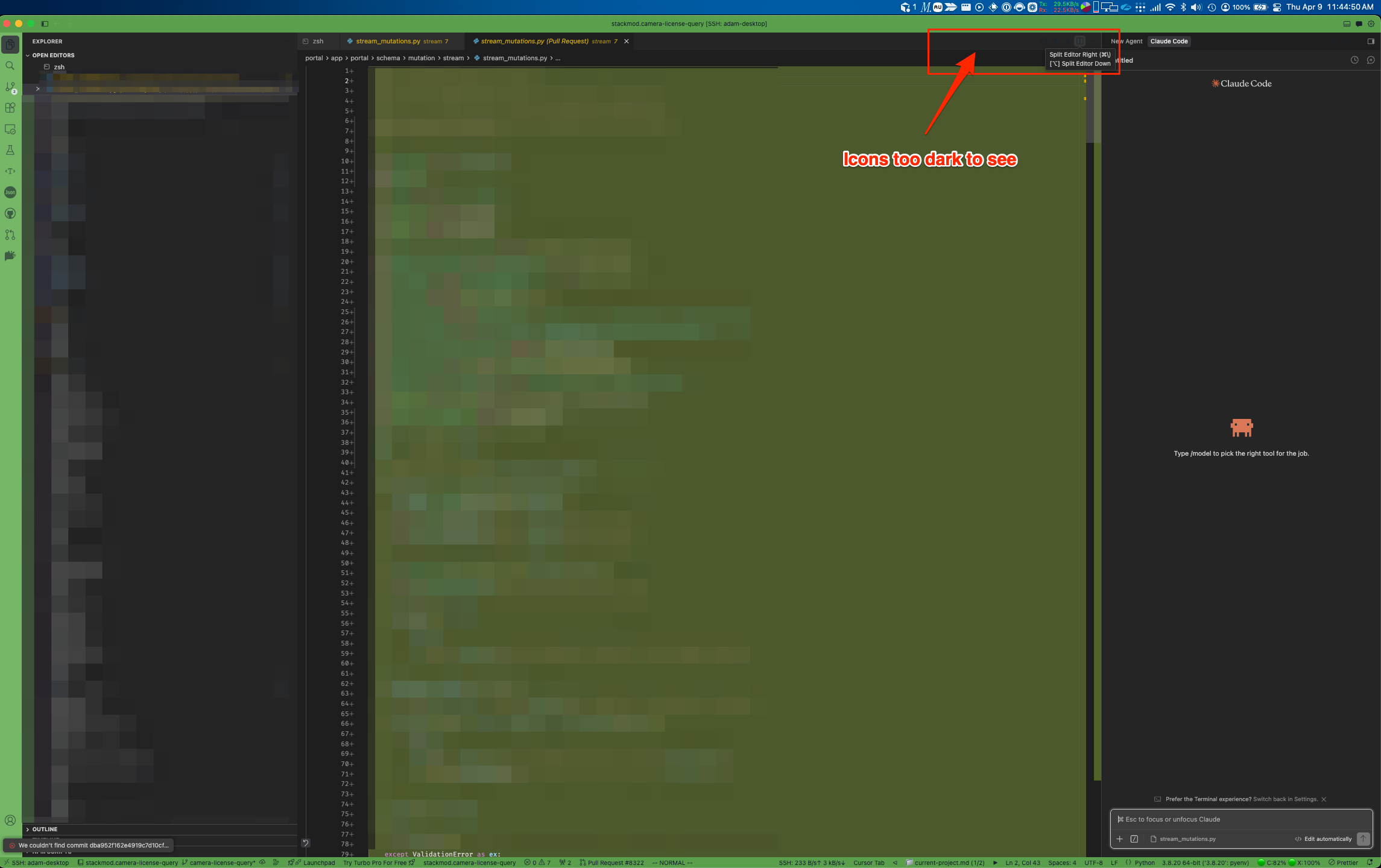
Hey, thanks for the report. I can see the screenshot, the icons really blend into the background.
This is a known icon contrast issue in dark mode. A common cause is custom color settings, for example from the Peacock extension or manual workbench.colorCustomizations. In particular, titleBar.activeForeground can affect icon colors outside the title bar.
Can you try this:
Open settings.jsonCmd+Shift+P > Preferences: Open User Settings (JSON) and check if there is a workbench.colorCustomizations section. If there is, try commenting it out and reload.
Start Cursor with cursor --disable-extensions from Terminal. If the icons become visible, one of the extensions is setting a problematic color.
A similar case was solved in this forum thread Invisible action buttons. Changing titleBar.activeForeground to a lighter color like #cccccc helped.
If none of this applies, no custom colors and no extensions, the team is aware of the icon contrast issue. Let me know what you find.
Icons invisible/too dark in dark mode? Check for Peacock writing to workspace settings.
Symptoms:
Activity bar or auxiliary bar icons are nearly invisible in dark mode
The issue only affects specific workspace windows, not fresh ones
workbench.colorCustomizations has no effect no matter what you set
Disabling Peacock doesn’t fix it
Root cause:
Peacock writes titleBar.activeForeground directly into your workspace’s .vscode/settings.json. If it randomizes to a dark color, those icons become invisible against the dark background. Since workspace settings override user settings, nothing you set in your user settings.json or profile settings will have any effect.
Fix:
Open .vscode/settings.json in the affected workspace
Look for workbench.colorCustomizations with a titleBar.activeForeground key set to a dark value — that’s the culprit
Remove it (or change it to a light color like #cccccc)
To prevent it happening again:
Add this to your global user settings.json:
Cool that you tracked down the cause and explained it in such detail. Peacock really does write titleBar.activeForeground straight into the workspace .vscode/settings.json, and that overrides anything you set in user settings. Your fix will definitely help other users who hit the same thing.
I’ll mark your post as the solution so it shows up first in search results for this topic.
Also, we’ve got an internal issue open for the broader problem of icon contrast in dark themes, not just with Peacock. Once there’s an update on the fix, I’ll reply in the thread.