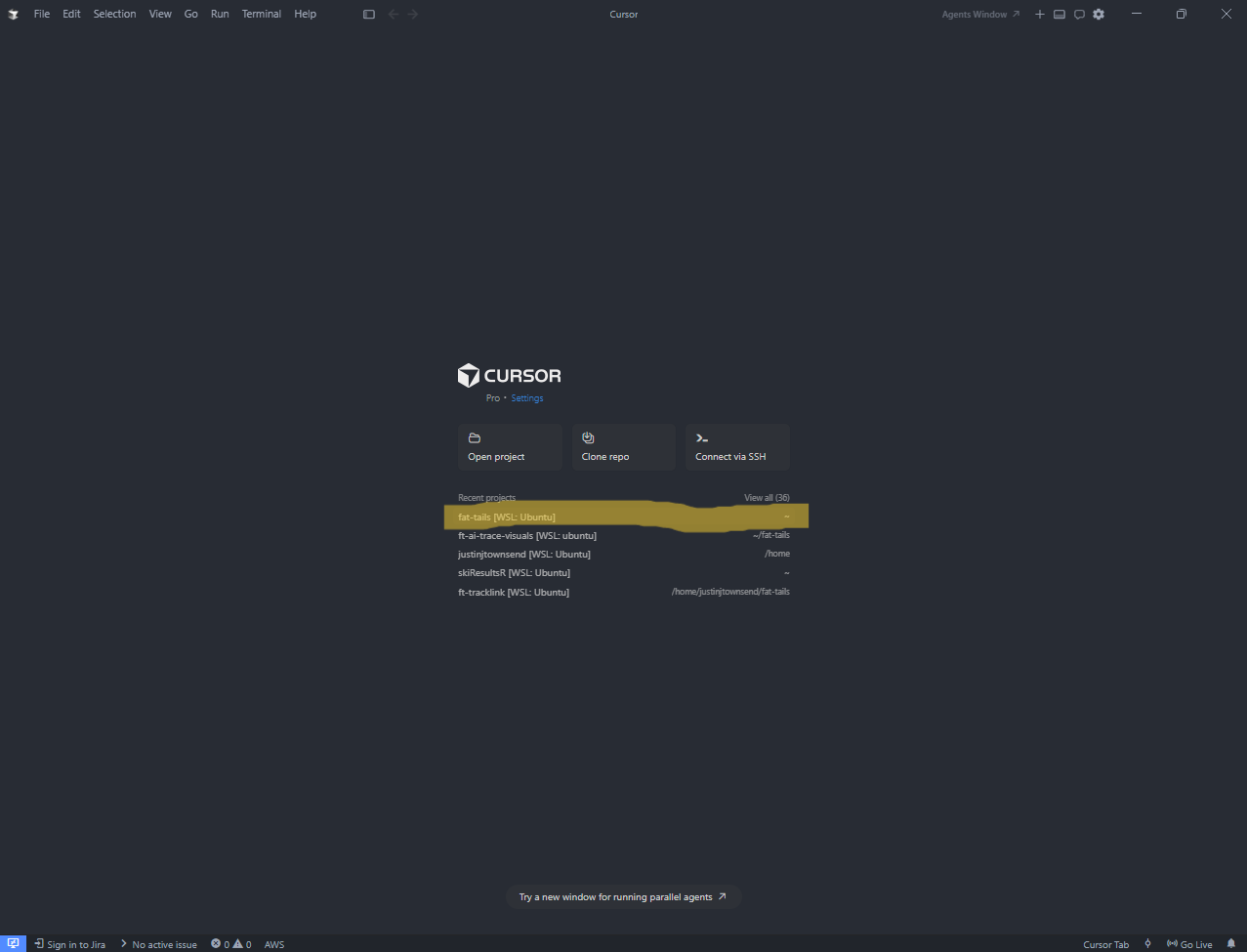
WSL extension not recognized after Cursor 3.0.12 update

Hello,

Just back from a few days away from Cursor (I know… crazy eh :zany_face: ). Newly updated this morning to:

Version: 3.0.12 (user setup)
VSCode Version: 1.105.1
Commit: a80ff7dfcaa45d7750f6e30be457261379c29b00
Date: 2026-04-04T00:13:18.452Z
Layout: editor
Build Type: Stable
Release Track: Default
Electron: 39.8.1
Chromium: 142.0.7444.265
Node.js: 22.22.1
V8: 14.2.231.22-electron.0
OS: Windows_NT x64 10.0.22621

From 2.4.x. As a WSL(2) user, it now doesn’t recognise ANY of the WSL extensions (either Windows / VS Code native or Anysphere), don’t even get the pop-up which showed in 2.4.x.

So, for now, Cursor is unusable for my development approach on WSL. Would think that WSL is quite a big footprint for customers (especially enterprise?)

Any visibility on a fix / suggested workarounds to resolve?

Many thanks,

Justin

Hey @justinjtownsend, I need a bit more detail to help figure this out. I can see you have Layout: editor in the version info, but I want to confirm a couple things:

  1. Is the issue happening in the Editor Window, or did you try the Agent Window (the new window in Cursor 3)?
  2. What exactly happens: extensions won’t install, you get an error popup, or WSL won’t connect at all? A screenshot would help a lot.

If this is in the Agent Window, that’s a known limitation. WSL isn’t supported there yet. The workaround is to use the Editor Window or launch with cursor --classic.

If it’s not working in the Editor Window after updating to 3.0.12, that’s a different case, and we’ll need more detailed info.

Related discussion: Cursor 3: Extension 'WSL' is required to open the remote window

Hi @deanrie ,

Of course, thank you for the link which I’ve just been through. I tagged onto this thread because the issue description is the same as my experience.

  1. This issue is happening in the Editor Window / Layout, where my project is currently being worked on. Prior to the update to 3.x I experienced the intermittent pop-up asking me which WSL extension to use.
  2. After the update to 3.x, I tried to load the WSL2 project a couple of times (last project used), it just keeps hanging / waiting / not finding the extension or project. I restarted Cursor, at one stage with a New Window and asked it THEN load my project… also no success.
    1. SO, I restarted the computer, started Cursor and received the “Load Error” status in the Editor.
    2. I clicked the “Re-load Window” option available, to re-start Cursor with the same WSL2 project and it remains hanging / waiting / looking for the project.

I can start a “Windows based” project in Cursor of course, but this is not the primary development direction for my use cases. I’d consider the use of the new layout once I know my base project development “OS” is stable.

Screenshot attached.

Many thanks,

Justin

Hi @deanrie ,

Of course, thank you for the link which I’ve just been through. I tagged onto this thread because the issue description is the same as my experience.

  1. This issue is happening in the Editor Window / Layout, where my project is currently being worked on. Prior to the update to 3.x I experienced the intermittent pop-up asking me which WSL extension to use.
  2. After the update to 3.x, I tried to load the WSL2 project a couple of times (last project used), it just keeps hanging / waiting / not finding the extension or project. I restarted Cursor, at one stage with a New Window and asked it THEN load my project… also no success.
    1. SO, I restarted the computer, started Cursor and received the “Load Error” status in the Editor.
    2. I clicked the “Re-load Window” option available, to re-start Cursor with the same WSL2 project and it remains hanging / waiting / looking for the project.

I can start a “Windows based” project in Cursor of course, but this is not the primary development direction for my use cases. I’d consider the use of the new layout once I know my base project development “OS” is stable.

Screenshot attached.

Many thanks,

Justin

@deanrie continued to investigate here and I thought to share updated findings:

  1. WSL2 project concerned is now loading in Cursor (Layout: Editor) after several re-starts (incl. the laptop). It is a large project (lots of files).
  2. I tried loading other (smaller) WSL2 projects initially in the Cursor Editor, successfully.
  3. I then tried loading the large WSL2 project using VS Code directly, successfully.
  4. After a subsequent re-start of the laptop and the Cursor Editor, I successfully loaded the large WSL2 project after the “WSL Extension Pop-Up” appeared for me this time.

It does seem, somehow there are old / out-of-date artefacts “in-memory” which Cursor relies on that only get “cleared out” over time (re-boots, re-starts etc.)?

Perhaps there are some cursor.exe switches / toggles I am missing that would force a cleaner re-start somehow.

In any case, some progress. :slight_smile:

Justin

@justinjtownsend, I see the screenshot. Cursor is stuck on “Opening Remote” with an empty editor area.

Glad you were able to load the project in the end. Your guess about stale artifacts is probably right. After a major update (2.4.x → 3.0.x), the cursor-server inside WSL can be left over from the old version and cause conflicts.

If it happens again, instead of rebooting a few times, you can clear the server cache right away:

# In a WSL terminal:
rm -rf ~/.cursor-server

Then restart Cursor and reconnect to the WSL project. The server will reinstall from scratch.

Related discussion about WSL issues after Cursor 3: Cursor 3: Extension 'WSL' is required to open the remote window

Let me know if it comes back.

At the risk of being direct, but hopefully this leads to a constructive outcome for others. Arguably this approach isn’t proving effective.

Followed the instructions in the previous message a few times now and it works intermittently (at best).

Current build:

Version: 3.1.15 (user setup)
VSCode Version: 1.105.1
Commit: 3a67af7b780e0bfc8d32aefa96b8ff1cb8817f80
Date: 2026-04-15T01:46:06.515Z
Layout: editor
Build Type: Stable
Release Track: Default
Electron: 39.8.1
Chromium: 142.0.7444.265
Node.js: 22.22.1
V8: 14.2.231.22-electron.0
OS: Windows_NT x64 10.0.22621

Thanks,

Justin

@justinjtownsend, fair point. If rm -rf ~/.cursor-server only helps sometimes, it’s probably not just server cache. It’s more likely a conflict between WSL client extensions.

Try this option too. It worked for a few users in a nearby thread: Cursor 3: Extension 'WSL' is required to open the remote window - #31 by kyle-514

  1. Fully close Cursor and check Task Manager to make sure no Cursor processes are running.
  2. Run cursor --classic from a Windows terminal.
  3. If you get a prompt to remove ms-vscode-remote.remote-wsl Microsoft’s WSL extension, accept it and click Uninstall & Restart Cursor. In Cursor 3 you should only have anysphere.remote-wsl.
  4. After restart, open your WSL project. It should connect reliably.

If it still hangs on Opening Remote, please send:

  • Output of wsl -l -v and wsl --version
  • Logs in Cursor: F1 → WSL: Show Log or Output → Remote - WSL. Screenshot or text is fine
  • What you see exactly: an empty editor with Opening Remote, an extension popup, or an error

With that, I can file a separate bug for your specific case Editor Window, 3.1.15, intermittent hangs. It’s different from the Agents Window issue that was fixed in 3.1.10.

Thank you, I’ve got the WSL2 remote project back (again) now, ms-vscode-remote.remote-wsl removed and reached your step 4. I’ll run it for a few hours today / tomorrow and report back here with an update.

I read the thread you mentioned, thank you.

It appears my issue is a little different and I often receive an issue with the Cursor window not responding at all (screenshot attached for reference).

:folded_hands:

Thanks, Justin, I can see the screenshot. It’s stuck on Opening Remote... in the status bar, and Windows is already offering Reopen or Close. The Agent sidebar is rendered, so it’s the remote connection that’s hanging, not the window itself.

To open a separate ticket for your case Editor Window 3.1.15, intermittent hang, next time you hit this dialog don’t click Close. Instead, grab at least one of these three artifacts:

  1. F1Output → channel Remote - WSL → screenshot or copy the text.
  2. F1Developer: Open Process Explorer → screenshot, especially extensionHost, ptyHost, wslhost.exe.
  3. F1Developer: Start CPU Profiler, wait about 10 seconds while it’s hung, then Stop CPU Profiler and attach the file.

Also share the short output of wsl -l -v and wsl --version from a normal PowerShell.

With that, I can log the bug with solid context. If you want to try one more workaround in the meantime, delete the server cache in WSL:

rm -rf ~/.cursor-server ~/.vscode-server

Then reconnect. Sometimes after upgrading 2.4.x to 3.x, incompatible leftovers remain there.

Just a dumb question here, trying to grab that info for you now.

When the Windows box pops up, selecting F1 does nothing. Should this specifically happen inside the hanging Cursor window, I have “Keep Waiting” as an option to perhaps intervene in the process somehow?

Worth mentioning this behaviour is proving reliable, I cannot open this project again and am experiencing the behaviour again.

If you can be a little more specific about which context F1 should be used to provide the extra details.

Happy to help,

Justin :folded_hands:

@justinjtownsend not a dumb question. When Windows shows Not Responding, the Cursor UI thread is actually frozen and F1 won’t work, even if you click Keep Waiting. Keyboard commands will only work if the window briefly unfreezes.

Here’s what to do:

  1. Don’t close the frozen window. Click Keep Waiting. This keeps the process and logs intact. If the UI comes back for a second, quickly press F1Output → channel Remote - WSL. If it doesn’t, skip it. There’s a backup option below.

  2. Logs from disk. This works even when the window is fully frozen. Open in File Explorer:

    %APPDATA%\Cursor\logs
    

    You’ll see folders by date or session. Open the newest one, then window<N> usually window1. I need:

    • exthost\anysphere.remote-wsl\*.log or Remote - WSL.log nearby
    • main.log and renderer.log from the session root

    Zip the whole session folder and attach it here.

  3. Processes. Instead of F1 → Process Explorer, open Windows Task Manager with Ctrl+Shift+Esc, go to Details, sort by Name. Send a screenshot showing rows for Cursor.exe, wslhost.exe, wsl.exe, node.exe. I care about CPU and Memory, and how many instances there are.

  4. CPU profiler. You can’t start it via F1 while frozen, that’s fine. Skip it.

  5. After you collect everything, also paste the output of wsl -l -v and wsl --version from a normal PowerShell.

With this set of disk logs plus Task Manager plus WSL info, I can file a separate bug for your exact case Editor Window, 3.1.15, intermittent hang on Opening Remote. Let me know if any of the paths won’t open.

No worries, thanks @deanrie for the update.

  1. Log attached, JT-20260422T112913.zip (62.8 KB)

  2. Project open attempt (Cursor_HighlightedProject_OpenAttempt.png)

  3. Cursor processes (CursorExe.png).

  4. WSL processes (WSL.png).

  5. No node.exe for ANY node processes running in task manager when starting Cursor in Windows.

  6. wsl -l -v:
    NAME STATE VERSION

    • Ubuntu Stopped 2
      docker-desktop-data Stopped 2
      docker-desktop Stopped 2
  7. wsl --version:
    WSL version: 2.6.3.0
    Kernel version: 6.6.87.2-1
    WSLg version: 1.0.71
    MSRDC version: 1.2.6353
    Direct3D version: 1.611.1-81528511
    DXCore version: 10.0.26100.1-240331-1435.ge-release
    Windows version: 10.0.22621.4317

Thanks again.

Justin

@deanrie the last window was a bit busy and I thought I had attached the WSL image. Now here.

Cheers,

Justin

Hey, I checked the logs. In one session you had two different issues stacked together, so let’s go step by step.

  1. WSL extension is a victim, not the cause

anysphere.remote-wsl isn’t crashing by itself. It (and about 18 more extensions) gets taken down by a cascading teardown of extension hosts. At 11:29:36 three extension hosts collapse with Extension host terminating: renderer closed the MessagePort, and the last remaining host 14612 hits Canceled in the middle of activating a bunch of extensions. Anything that didn’t finish activating gets marked as activation failure. WSL just happened to be in that queue.

To find the trigger, try this:

  1. Close Cursor, then start it with --disable-extensions:

    "%LOCALAPPDATA%\Programs\cursor\Cursor.exe" --disable-extensions
    

    Open the same WSL project and check if the teardown shows up again in the logs: %APPDATA%\Cursor\logs\<new session>\exthost.log.

  2. If it doesn’t reproduce, enable extensions in groups. From your log, suspicious candidates are:

    • amazonwebservices.aws-toolkit-vscode lots of startup warnings about proposed API.
    • ms-azuretools.vscode-azurefunctions in the same session its auto-update breaks too because the dependency vscode-azureresourcegroups isn’t built for Windows x64, which could poke the shared process.
  3. The 3-minute window freeze 11:31:22 to 11:34:42 is a separate known bug. The whole stack, 14 samples, goes y.link to u.inlineTokens to u.lex to RegExp.exec. That’s catastrophic backtracking in the markdown parser when it processes large responses with link-heavy markdown, common for MCP tool outputs like PR comments, diffs, and badge images. It’s being tracked and there’s no ETA for a fix yet. See this thread with workarounds: Window becomes unresponsive and reloads when MCP tool returns large response (markdown lexer regex hang)

If you can catch the freeze again, please grab a CPU profile using the instructions in the log: Runtime debugging · microsoft/vscode Wiki · GitHub and attach it. That really helps with prioritizing.

Let me know what you see when you run with --disable-extensions.

@deanrie got it re: WSL thanks.

  1. Using "%LOCALAPPDATA%\Programs\cursor\Cursor.exe" --disable-extensions I get two lines in the exthost.log you mention:

    2026-04-23 10:59:54.081 [info] Extension host terminating: renderer closed the MessagePort
    2026-04-23 10:59:54.109 [info] Extension host terminating: renderer closed the MessagePort

  2. WSL loads fine, when asked. The freeze still appears when opening the specific project though with extensions disabled.

  3. CPU Profile (cursor-R4Z3bWg9.trace.zip (10.2 MB)), it might be a bit longer than you’d like since I had to do a couple of “Reopens” to catch “F1 → Developer: Stop Tracing”. Appreciate the link to the VS Code instructions, now I know what to look for there to add the extra switches.

I’m not an enormous user of MCP just yet (except presumably the GitHub comms is via MCP), are there some conventions to try to follow, meantime, that slows down the appearance of the bug you reference?

Cheers,

Justin

Hey Justin, thanks. That really narrows it down.

Summary on the two issues:

  1. Cascade teardown extensions is confirmed. In --disable-extensions mode, exthost.log only has two standard MessagePort messages, no cascade. So the mass crash of extension hosts and the anysphere.remote-wsl crash in the older log was triggered by one of the installed extensions. Main suspects from your previous log are amazonwebservices.aws-toolkit-vscode and ms-azuretools.vscode-azurefunctions. To find the culprit, re-enable extensions in groups of 3 to 4, starting with other ones first, and watch for when the cascade comes back.

  2. The freeze when opening the project is a separate markdown lexer bug that the IDE hits pretty often. The fact that it reproduces even with extensions disabled is the final confirmation. The y.linkRegExp.exec stack triggers while rendering chat history with a lot of link-heavy markdown like PR comments, badge images, MCP replies with diffs. The project is not the cause. When Cursor opens, it restores the last agent chat, and if it is heavy, the UI hangs on parsing.

Workarounds that actually help:

  • Start a new agent chat in this project. If you can, do it in the open window, or after Developer: Reload Window, open an empty chat and work from there. Do not touch the old history, rendering it is the trigger.
  • Clear agent chat history entirely, if you are ok with that. Close Cursor completely, make a backup, then run this in PowerShell:
    copy "%APPDATA%\Cursor\User\globalStorage\state.vscdb" "%APPDATA%\Cursor\User\globalStorage\state.vscdb.bak"
    sqlite3 "%APPDATA%\Cursor\User\globalStorage\state.vscdb" "DELETE FROM cursorDiskKV WHERE key LIKE 'agentKv:blob:%';"
    
    You can download sqlite3.exe from sqlite.org if it is not in PATH. After this, the project should open instantly.
  • About MCP. GitHub via the built-in Cursor integration is not MCP, and its rendering is usually lighter. If you set up GitHub MCP separately, its responses with PR comments and badges are the most common thing that breaks the lexer. Until there is an IDE-side fix, it is better to avoid GitHub MCP, or use a wrapper that returns plain text.
  • After sleep and wake, run Developer: Reload Window before opening a heavy chat. It helps in about 30% of cases based on reports in a nearby thread.

I can not share a fix timeline yet, the issue is in the backlog. When there is movement, I will post here.

Let me know after you delete agentKv:blob:%. If the freeze is gone on open, that fully confirms the diagnosis.

Hmm… I’ve been diligently going through unused extensions in VS Code (incl. the ones you suggested) and removing them.

  • I cleared the agent history via sqlite3, oddly the state.vscdb didn’t change TOO much in size on the filesystem, but confirmed with a SELECT that none of those entries were present in cursorDiskKV.
  • Re-cleared servers, rm -rf ~/.cursor-server ~/.vscode-server.
  • Re-started Cursor (–disable-extensions), go to open the project, same problem (window not responding).
  • Connected to WSL, then separately navigated to the project folder using “Remote Explorer” extension, same result (had to re-enable extensions for this).
  • Investigating latest exthost.log and despite uninstalling the amazonwebservices.aws-toolkit-vscodeextension still shows up in exthost.log, is there somehow a persistence of certain extensions elsewhere I haven’t picked up on, when uninstalling extensions perhaps?

2026-04-23 14:24:24.591 [info] Extension activation failure: anysphere.cursor-commits
2026-04-23 14:24:24.591 [info] Extension activation failure: anysphere.cursor-deeplink
2026-04-23 14:24:24.591 [info] Extension activation failure: anysphere.cursor-explorer
2026-04-23 14:24:24.591 [info] Extension activation failure: anysphere.cursor-mcp
2026-04-23 14:24:24.591 [info] Extension activation failure: anysphere.cursor-resolver-helper
2026-04-23 14:24:24.592 [info] Extension activation failure: anysphere.cursor-shadow-workspace
2026-04-23 14:24:24.592 [info] Extension activation failure: vscode.debug-auto-launch
2026-04-23 14:24:24.592 [info] Extension activation failure: vscode.merge-conflict
2026-04-23 14:24:24.592 [info] Extension activation failure: amazonwebservices.aws-toolkit-vscode
2026-04-23 14:24:24.592 [info] Extension activation failure: antfu.unocss
2026-04-23 14:24:24.592 [info] Extension activation failure: redhat.vscode-yaml
2026-04-23 14:24:24.592 [info] Extension activation failure: dbaeumer.vscode-eslint
2026-04-23 14:24:24.593 [info] Extension activation failure: dsznajder.es7-react-js-snippets
2026-04-23 14:24:24.593 [info] Extension activation failure: ecmel.vscode-html-css
2026-04-23 14:24:24.593 [info] Extension activation failure: esbenp.prettier-vscode
2026-04-23 14:24:24.593 [info] Extension activation failure: vscode.github-authentication
2026-04-23 14:24:24.593 [info] Extension activation failure: kisstkondoros.vscode-gutter-preview
2026-04-23 14:24:24.593 [info] Extension activation failure: ms-vscode-remote.remote-containers
2026-04-23 14:24:24.593 [info] Extension activation failure: PKief.material-icon-theme
2026-04-23 14:24:24.593 [info] Extension activation failure: ritwickdey.LiveServer
2026-04-23 14:24:24.594 [info] Extension activation failure: rvest.vs-code-prettier-eslint
2026-04-23 14:24:24.594 [info] Extension activation failure: sainnhe.gruvbox-material
2026-04-23 14:24:24.627 [info] Extension host with pid 19680 exiting with code 0

Maybe we’re almost there. :slight_smile:

Justin, we’re closer to a fix than it looks. Your trace from the previous post is really on point.

Why the freeze still happens even if agentKv:blob:% is cleared and --disable-extensions is on

The CPU profile shows two hot paths: [email protected] + remark-gfm + mdast-util-gfm-table (a Markdown lexer issue that now looks specifically tied to parsing GFM tables, stronger signal than before), and restoring aiBackgroundComposer* state on open. agentKv:blob:% was only one part. Composer state is stored under other keys that your DELETE didn’t touch. And the file size not shrinking is normal for SQLite without VACUUM, your SELECT already confirmed the rows were removed.

To find what’s still heavy:

sqlite3 "%APPDATA%\Cursor\User\globalStorage\state.vscdb" "SELECT key, length(value) AS bytes FROM cursorDiskKV ORDER BY bytes DESC LIMIT 50;"

Paste the output and we can pick the right keys to remove. I expect the top ones to be composerData:*, aiBackgroundComposer*, chat.*.

Fast path if you just need it working

Fully close Cursor, then rename the DB:

cd %APPDATA%\Cursor\User\globalStorage
ren state.vscdb state.vscdb.bak

Start Cursor, open the WSL project. It should open instantly. You’ll lose chat and composer history on this machine. The .bak file is your rollback.

Why aws-toolkit-vscode keeps coming back

It’s installed on the WSL side, not the Windows side. Open the Extensions panel in Cursor while connected to WSL, scroll to Installed in WSL: Ubuntu, and uninstall it there. Local uninstall won’t touch the remote copy, and rm -rf ~/.cursor-server won’t help because the server syncs extensions back from your user profile on every reconnect.

About the 22 lines of activation failure

That’s a symptom of the UI thread freezing at startup, not the cause. The extension host waits, then it gets canceled, exits with code 0, and anything that didn’t activate in time gets marked as activation failure. Once the Markdown lexer hang is gone, those lines should go away on their own.

Status on the original bug

Your trace is a great artifact. The stack marked.esm.js -> mdast-util-gfm-table -> RegExp.exec points specifically to GFM tables, and that’s new info.

Send the LIMIT 50 output when you can, or just rename the DB now if you want a clean open today.

@deanrie thanks, got it re: clean start in the project.

With the extensions I realised (given the separate VS Code install) they were present in as many as x4 places (x 2 IDEs, x 2 hosts (local + WSL). Got there in the end.

sqlite3 “%APPDATA%\Cursor\User\globalStorage\state.vscdb” “SELECT key, length(value) AS bytes FROM cursorDiskKV ORDER BY bytes DESC LIMIT 50;”

key length(value) C D E F
messageRequestContext:e0a8c5d9-7300-4d8a-9720-1ddbf7f16d1e:d27839ae-8fb5-4433-b48f-d6835f1b96be 6162251
bubbleId:81a1e9cc-39d9-446a-bf65-5f51622edd6a:2ad6b137-bba9-4128-b7e2-ca28986d2599 2064824
bubbleId:81a1e9cc-39d9-446a-bf65-5f51622edd6a:27ebc69a-c0c5-42e3-a312-1468dd259483 806744
composerData:9060320b-6ae5-4724-9a26-7ae84c6da39d 504895
bubbleId:5bfdb2c1-1927-4f91-98ac-827101ef2700:73ecf84e-060e-44ad-b6db-89bd9163796e 351081
bubbleId:4d76a7cb-0325-44f2-bb01-18dfc5980245:79cbd435-8895-4943-9252-b74e02efe4a9 340006
bubbleId:5bfdb2c1-1927-4f91-98ac-827101ef2700:553ee90d-621e-402b-b54a-f93407d9abfe 339824
bubbleId:5bfdb2c1-1927-4f91-98ac-827101ef2700:bf3f883c-2758-4507-9c1a-cbda73dfb14d 339751
bubbleId:da3a3272-9fea-4a52-bd70-487fa6c8acd1:8fe36f12-766c-475b-8341-f0ce0aa8d13f 336287
bubbleId:988230a0-88a0-40fe-9f64-8b0518a77e8b:60a27575-c514-4cef-a8c6-31467dbf1261 297009
bubbleId:1914f049-acdd-487f-a571-345b6dea3008:461c7879-6053-45ec-9f68-e422583dea8b 256000
bubbleId:1914f049-acdd-487f-a571-345b6dea3008:3740f0e8-28a7-4425-9b83-73128751ef79 255381
bubbleId:1914f049-acdd-487f-a571-345b6dea3008:b9f7c130-274b-4eea-821a-94dbd17d4b30 254189
bubbleId:ac383ca1-5e33-4f5e-ae24-5c9bca4cd1ff:9d600a7e-7fe9-44f5-9a66-0f3559c94f98 248468
bubbleId:1914f049-acdd-487f-a571-345b6dea3008:17ac0328-16fd-41be-8196-8f1d67970a1c 235550
bubbleId:1914f049-acdd-487f-a571-345b6dea3008:30a840c2-83c2-4978-994a-d401163ea2af 233468
bubbleId:86cb2319-6997-428c-9a26-db8f44ea0ae4:6c36fd6d-7b0c-4714-8721-ca329155768b 203292
bubbleId:03380b3c-22bf-4cae-9284-c754eb460f75:1c2620fe-ab8c-4156-95ef-dc3caf624e47 202915
bubbleId:e512dccf-e999-480a-8fbd-3c72b68b7a8b:bbc1a8d4-c979-459b-9723-82523d6776aa 202023
bubbleId:e512dccf-e999-480a-8fbd-3c72b68b7a8b:f287bbca-a019-4cfd-bbe8-545ae510a5d0 199274
bubbleId:e512dccf-e999-480a-8fbd-3c72b68b7a8b:67f63ad6-f981-4ab3-8709-dc3aaeaa5089 199206
composerData:af513bb6-cc2f-4a4c-9c7b-a676849a93d3 190722
agentKv:blob:242b71442f8edc7de095cb0bc61579658fb8a49e8102a7176aecf88ee21954cd 188805
bubbleId:58d1ec7c-36c5-417f-be03-fcf17bb3e15d:a545b75d-0e9c-4827-8f35-d6a62cda5c0d 182126
bubbleId:dc2b2f66-ffcf-4630-aac9-9b9e7ff062cc:1c864be9-62f0-4754-96f9-cc98b9bd77c9 179833
bubbleId:dc2b2f66-ffcf-4630-aac9-9b9e7ff062cc:5d7a0342-8e1b-4c8b-a97f-382568c57fa4 179475
bubbleId:21a7bcaa-1312-4f37-851f-d0c879482b2c:794472d6-2746-4bf2-9b2c-56955469754f 179405
agentKv:blob:1b8024e4739f3bdaf6765a80e8068d5395cd496750d1e82784df5d6dea05f78f 177344
bubbleId:1ce52a04-0b04-4518-8abc-42c6ff1ffa50:416f4b2b-875f-465e-b0cd-d1f815ad289e 175507
composerData:253e346c-48f5-4168-96ab-a074919808bb 173724
bubbleId:14ef9432-dfb6-473c-be4d-cdcf10c5caff:ea51ce86-ddfa-4327-8128-519c81b40c5c 170117
bubbleId:a02e5b5a-c346-49ab-8fee-e80ab3fda398:d03756ae-0a13-463a-aae7-4addbab843f5 169994
bubbleId:acc36166-63ac-4ea1-83ca-6849b61d2f93:cbedfc6e-fa46-49b5-a3c7-e2f803159778 169751
bubbleId:62b6e385-726a-4d67-b5be-a1956b575852:381a0469-a9a3-4f92-a892-deb8fd5aee38 169131
bubbleId:58d670fe-0c88-40db-926b-456bda96bb36:367d59a9-31c1-4bf5-9c37-008b655f0d5b 168781
bubbleId:58d1ec7c-36c5-417f-be03-fcf17bb3e15d:8ee0647a-50a6-45c3-a373-78655050a9d4 167155
bubbleId:7b6c8fed-18a5-4398-8215-d7835543f918:d3f9184c-9273-4f78-a99d-a017d626ed8a 163024
bubbleId:fffc584d-e9d7-42ec-a7f7-d1176d07820e:b4433033-642f-488a-92b1-fe555e729478 162188
bubbleId:7cf44c18-a181-43b6-8e59-edd9e3703258:018e5e09-0ae6-4ab2-9219-fe97416cb16c 159751
bubbleId:c5dc4407-c66e-44b8-aad5-7c7090432b5d:f8cb7218-6de2-4bfc-be56-00fb468b9ae5 159189
bubbleId:a48828a1-c9a1-45e4-a7a6-f68a9df250ef:585c4276-265d-4db8-b1fd-a9b61a7d2a4c 159052
bubbleId:81a1e9cc-39d9-446a-bf65-5f51622edd6a:f7c4e1e0-18cf-48cd-af4e-5ea9a0fa35b5 158973
bubbleId:da3a3272-9fea-4a52-bd70-487fa6c8acd1:14a5551e-68d5-4bfe-b48c-cd9bb4943501 157918
bubbleId:c5dc4407-c66e-44b8-aad5-7c7090432b5d:9cea9a14-f3e0-404e-9413-9784fc74554f 156951
bubbleId:81a1e9cc-39d9-446a-bf65-5f51622edd6a:8f38d949-dd32-46ca-935b-99cc4ec6c929 156789
bubbleId:1914f049-acdd-487f-a571-345b6dea3008:642ada68-8ea4-4760-8bcb-f3e40201615a 156040
bubbleId:fffc584d-e9d7-42ec-a7f7-d1176d07820e:ace3b597-a8cb-4b7c-86d3-6564141e6839 155375
bubbleId:58d670fe-0c88-40db-926b-456bda96bb36:06be85f9-a94c-4b51-9f8e-ee4befad6386 153403
bubbleId:7cf44c18-a181-43b6-8e59-edd9e3703258:b552823a-80c5-4f6e-96c2-9be583a93786 153194
bubbleId:253e346c-48f5-4168-96ab-a074919808bb:31197ac3-5b3c-49e4-8e17-adea92eefd42 152605

Thanks,

Justin

P.S. Renaming the state.vscdb understood, does this imply separate (full) installations for Cursor would be possible, e.g. if your state.vscdb should only contain chat messages for a single project?

Great dump, Justin. The main culprit is obvious: the messageRequestContext:e0a8c5d9-...:d27839ae-... row is 6,16 MB, that’s a single request with a huge context. Plus the composer 81a1e9cc-... pulls another ~3 MB via a couple of bubbles. While those records are in the DB, startup rendering will keep getting stuck on GFM tables in the parser.

Targeted cleanup, close Cursor first:

copy "%APPDATA%\Cursor\User\globalStorage\state.vscdb" "%APPDATA%\Cursor\User\globalStorage\state.vscdb.bak2"

sqlite3 "%APPDATA%\Cursor\User\globalStorage\state.vscdb" ^
 "DELETE FROM cursorDiskKV WHERE key LIKE 'messageRequestContext:%';" ^
 "DELETE FROM cursorDiskKV WHERE key LIKE 'bubbleId:81a1e9cc-39d9-446a-bf65-5f51622edd6a:%';" ^
 "DELETE FROM cursorDiskKV WHERE key = 'composerData:81a1e9cc-39d9-446a-bf65-5f51622edd6a';" ^
 "DELETE FROM cursorDiskKV WHERE key LIKE 'composerData:9060320b-6ae5-4724-9a26-7ae84c6da39d';" ^
 "DELETE FROM cursorDiskKV WHERE key LIKE 'composerData:af513bb6-cc2f-4a4c-9c7b-a676849a93d3';" ^
 "DELETE FROM cursorDiskKV WHERE key LIKE 'composerData:253e346c-48f5-4168-96ab-a074919808bb';" ^
 "VACUUM;"

This should remove the leftover tail. If you want a more guaranteed option, same idea but more aggressive:

sqlite3 "%APPDATA%\Cursor\User\globalStorage\state.vscdb" ^
 "DELETE FROM cursorDiskKV WHERE key LIKE 'messageRequestContext:%' OR key LIKE 'bubbleId:%' OR key LIKE 'composerData:%' OR key LIKE 'agentKv:blob:%'; VACUUM;"

After that, open the project. The freeze should be gone, and those 22 activation failure errors too.

Update on the bug report: the issue is logged, and your CPU profile with the marked -> mdast-util-gfm-table -> RegExp.exec stack is attached. I can’t share an ETA for a fix yet. I’ll reply in the thread when there’s an update.

About the P.S. on state.vscdb: no, you can’t create separate installs per project in the normal way. That file is global per install: settings, keybindings, history for all composers and chats across all projects, MCP configs, UI state. It isn’t split by project. If you really need isolation, you can run portable profiles via --user-data-dir:

"%LOCALAPPDATA%\Programs\cursor\Cursor.exe" --user-data-dir "D:\cursor-profiles\projectA"

Each path gives you an independent state.vscdb, its own extensions, its own sign-in. This is a solid workaround for heavy projects so their history doesn’t slow down your main profile.