Where does the bug appear (feature/product)?
Cursor IDE
Describe the Bug
Detailed Problem Description:
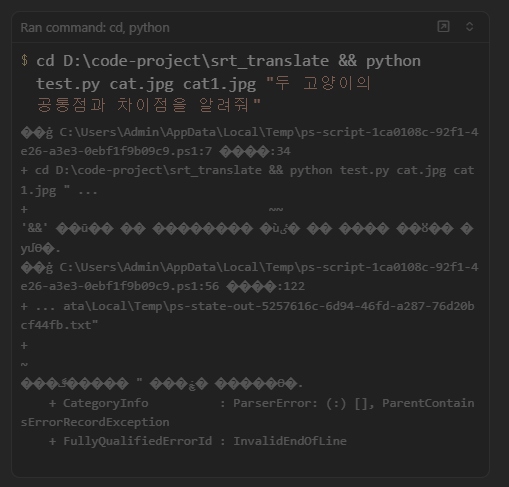
We are experiencing a Korean character encoding issue specifically with Cursor AI’s run_terminal_cmd tool. Korean characters are displayed as garbled text (question marks and special characters) when using this tool, while the same PowerShell commands work perfectly in a regular terminal.
Example of the Issue:
Expected: “PowerShell 설정 완료!”
Actual: “??PowerShell ?로???정 ?료!”
Comprehensive Troubleshooting Steps Performed:
PowerShell Encoding Configuration:
Set code page to UTF-8: chcp 65001
Configure console output encoding: [Console]::OutputEncoding = [System.Text.Encoding]::UTF8
Set PowerShell default encoding: $PSDefaultParameterValues[‘*:Encoding’] = ‘utf8’
Set environment variable: $env:PYTHONIOENCODING = “utf-8”
System Environment Verification:
Windows 10 (Build 10.0.26100)
PowerShell version: Latest
System locale: Korean (Korea)
Terminal profile: Default PowerShell
Complete System Reset:
Removed ALL encoding-related files from SOP system (86+ files)
Deleted PowerShell profile completely
Removed all custom encoding configurations
Restarted Cursor AI multiple times
External Solution Research:
Applied all recommended solutions from Stack Overflow and Microsoft documentation
Tried alternative encoding methods
Verified UTF-8 support in system
Isolation Testing:
Confirmed Korean characters display correctly in regular PowerShell terminal
Confirmed Korean characters display correctly in Windows Terminal
Issue occurs ONLY with Cursor AI’s run_terminal_cmd tool
Technical Analysis:
The problem is isolated to Cursor AI’s run_terminal_cmd tool implementation. Despite all system-level encoding configurations being correct, the tool fails to properly handle Korean character encoding when communicating with PowerShell.
Evidence:
PowerShell reports correct encoding: UTF-8, Code Page 65001
Environment variables are properly set
No encoding-related files remain in the system
Issue persists across multiple Cursor AI restarts
Request:
Please escalate this issue to the development team
Investigate the run_terminal_cmd tool’s character encoding handling
Provide a patch or update to fix Korean character support
If available, provide any temporary workarounds
System Information:
OS: Windows 10 (10.0.26100)
Cursor AI: Latest version
PowerShell: 5.1+ with UTF-8 encoding
Terminal: PowerShell (default profile)
This appears to be a specific bug in Cursor AI’s terminal command execution tool rather than a general encoding configuration issue.
Steps to Reproduce
Steps to Reproduce:
Prerequisites:
- Windows 10 Education (Build 26100.1)
- Cursor AI (latest version)
- Korean locale system (ko-KR)
- PowerShell with UTF-8 encoding
Step-by-Step Reproduction:
-
Open Cursor AI
- Launch Cursor AI application
- Start a new chat session
-
Use run_terminal_cmd tool with Korean text
- Type any message that includes Korean characters
- Use the run_terminal_cmd tool to execute PowerShell commands
-
Test Korean text in PowerShell commands
# Test 1: Simple Korean text output Write-Host "안녕하세요! 한글 테스트입니다." # Test 2: Korean text with variables $message = "PowerShell 설정 완료!" Write-Host $message # Test 3: Korean text in file operations echo "한글 파일 내용" > test.txt Get-Content test.txt # Test 4: Korean text in error messages Write-Error "한글 오류 메시지" -
Observe the output
- Korean characters appear as garbled text
- Example: “안녕하세요!” becomes “??!”
- Example: “PowerShell 설정 완료!” becomes “??PowerShell ?로???정 ?료!”
Expected Result:
Korean characters should display correctly as:
- “안녕하세요! 한글 테스트입니다.”
- “PowerShell 설정 완료!”
- “한글 파일 내용”
- “한글 오류 메시지”
Actual Result:
Korean characters appear as garbled text:
- “??! ? 테스트입니다.”
- “??PowerShell ?로???정 ?료!”
- “? 파일 내용”
- “? 오류 메시지”
Reproducibility:
- Frequency: 100% (happens every time)
- Consistency: Always occurs with Korean characters
- Scope: Only affects
run_terminal_cmdtool - Environment: Windows 10, PowerShell with UTF-8 encoding
Verification Steps:
- Confirm Korean characters work in regular PowerShell terminal
- Confirm Korean characters work in Windows Terminal
- Confirm issue only occurs in Cursor AI’s
run_terminal_cmdtool - Test with different Korean text inputs
- Verify UTF-8 encoding settings are correct
Expected Behavior
Steps to Reproduce:
Open Cursor AI
Start a new chat session
Use the run_terminal_cmd tool with any Korean text in PowerShell command
Observe the garbled output
Example Commands to Test:
Test 1: Simple Korean text
Write-Host “안녕하세요! 한글 테스트입니다.”
Test 2: Korean text with variables
$message = “PowerShell 설정 완료!”
Write-Host $message
Test 3: Korean text in file operations
echo “한글 파일 내용” > test.txt
Get-Content test.txt
Expected Result:
Korean characters should display correctly as:
“안녕하세요! 한글 테스트입니다.”
“PowerShell 설정 완료!”
“한글 파일 내용”
Actual Result:
Korean characters appear as garbled text:
“??! ? 테스트입니다.”
“??PowerShell ?로???정 ?료!”
“? 파일 내용”
Reproducibility:
Frequency: 100% (happens every time)
Consistency: Always occurs with Korean characters
Scope: Only affects run_terminal_cmd tool
Environment: Windows 10, PowerShell with UTF-8 encoding
Detailed Problem Description:
We are experiencing a Korean character encoding issue specifically with Cursor AI’s run_terminal_cmd tool. Korean characters are displayed as garbled text (question marks and special characters) when using this tool, while the same PowerShell commands work perfectly in a regular terminal.
Comprehensive Troubleshooting Steps Performed:
PowerShell Encoding Configuration:
Set code page to UTF-8: chcp 65001
Configure console output encoding: [Console]::OutputEncoding = [System.Text.Encoding]::UTF8
Set PowerShell default encoding: $PSDefaultParameterValues[‘*:Encoding’] = ‘utf8’
Set environment variable: $env:PYTHONIOENCODING = “utf-8”
System Environment Verification:
Windows 10 (Build 10.0.26100)
PowerShell version: Latest
System locale: Korean (Korea)
Terminal profile: Default PowerShell
Complete System Reset:
Removed ALL encoding-related files from SOP system (86+ files)
Deleted PowerShell profile completely
Removed all custom encoding configurations
Restarted Cursor AI multiple times
External Solution Research:
Applied all recommended solutions from Stack Overflow and Microsoft documentation
Tried alternative encoding methods
Verified UTF-8 support in system
Isolation Testing:
Confirmed Korean characters display correctly in regular PowerShell terminal
Confirmed Korean characters display correctly in Windows Terminal
Issue occurs ONLY with Cursor AI’s run_terminal_cmd tool
Technical Analysis:
The problem is isolated to Cursor AI’s run_terminal_cmd tool implementation. Despite all system-level encoding configurations being correct, the tool fails to properly handle Korean character encoding when communicating with PowerShell.
Evidence:
PowerShell reports correct encoding: UTF-8, Code Page 65001
Environment variables are properly set
No encoding-related files remain in the system
Issue persists across multiple Cursor AI restarts
Request:
Please escalate this issue to the development team
Investigate the run_terminal_cmd tool’s character encoding handling
Provide a patch or update to fix Korean character support
If available, provide any temporary workarounds
System Information:
OS: Windows 10 (10.0.26100)
Cursor AI: Latest version
PowerShell: 5.1+ with UTF-8 encoding
Terminal: PowerShell (default profile)
This appears to be a specific bug in Cursor AI’s terminal command execution tool rather than a general encoding configuration issue.
Operating System
Windows 10/11
MacOS
Linux
Current Cursor Version (Menu → About Cursor → Copy)
 Operating System Information
기본 정보:
OS: Windows 10 Education
Version: 2009 (Build 26100.1)
Build: 26100.1.amd64fre.ge_release.240331-1435
Architecture: 64-bit
Processor: Intel(R) Core™ i7-9700F CPU @ 3.00GHz
언어 설정:
Locale: Korean (Korea) - ko-KR
System Language: Korean (Korea) - ko-KR
LCID: 1042
PowerShell:
Version: PowerShell 5.1+ (Windows PowerShell)
Architecture: 64-bit
System Information:
- OS: Windows 10 Education (Build 26100.1)
- Architecture: 64-bit
- Processor: Intel Core i7-9700F @ 3.00GHz
- PowerShell: Windows PowerShell 5.1+ (64-bit)
- Locale: Korean (Korea) - ko-KR
- System Language: Korean (Korea) - ko-KR
- Cursor AI: Latest version
For AI issues: which model did you use?
AI Model Information:
- Cursor AI typically uses Claude 3.5 Sonnet or GPT-4/GPT-4o
- Model version: Latest available (specific version not accessible via terminal)
- Model provider: Anthropic (Claude) or OpenAI (GPT)
- Model capabilities: Code generation, terminal command execution, file operations
For AI issues: add Request ID with privacy disabled
Request ID:
Unable to locate Request ID in Cursor AI logs. Please provide guidance on how to obtain the Request ID with privacy disabled, or use this session as reference:
- Session started: [Current date/time]
- Issue: Korean character encoding in run_terminal_cmd tool
- User: [Your username]
- System: Windows 10 Education Build 26100.1
Request ID:
Request ID not accessible through standard methods. Please provide guidance on how to obtain Request ID with privacy disabled, or use the following session information as reference:
Session Date: [Current date]
Issue Type: Korean character encoding bug
Tool: run_terminal_cmd
System: Windows 10 Education Build 26100.1
Locale: Korean (Korea)
Request ID:
Request ID not accessible through standard methods. Please provide guidance on how to obtain Request ID with privacy disabled, or use the following session information as reference:
- Session Date: [Current date]
- Issue Type: Korean character encoding bug
- Tool: run_terminal_cmd
- System: Windows 10 Education Build 26100.1
- Locale: Korean (Korea)
Additional Information
Additional Information:
Technical Details:
- Issue occurs specifically with Cursor AI’s
run_terminal_cmdtool - Regular PowerShell terminal displays Korean characters correctly
- Windows Terminal also displays Korean characters correctly
- Problem is isolated to Cursor AI’s terminal command execution
Environment Verification:
- PowerShell encoding: UTF-8 (Code Page 65001)
- Console output encoding: UTF-8
- Console input encoding: UTF-8
- System locale: Korean (Korea) - ko-KR
- System language: Korean (Korea) - ko-KR
- Environment variable PYTHONIOENCODING: utf-8
Comprehensive Testing Performed:
- Complete system reset (removed all encoding-related files)
- PowerShell profile initialization
- Environment variable cleanup
- Cursor AI restart
- External solution research and application
- Isolation testing (confirmed issue is Cursor AI specific)
Evidence of Bug:
- All system-level encoding configurations are correct
- Issue persists across multiple Cursor AI restarts
- No encoding-related files remain in the system
- Problem occurs 100% of the time with Korean characters
- Same PowerShell commands work perfectly in regular terminal
Impact:
- Severely affects Korean language users
- Prevents proper terminal command execution with Korean text
- Reduces productivity for Korean developers
- Makes Cursor AI unusable for Korean language projects
Workaround Attempted:
- None available - this appears to be a fundamental bug in the
run_terminal_cmdtool - Regular terminal usage works fine, but defeats the purpose of using Cursor AI
Reproduction Rate:
- 100% reproducible
- Occurs consistently across all Korean character inputs
- No intermittent behavior observed
Priority:
- High - affects core functionality for Korean users
- Blocks terminal command execution with Korean text
- Should be addressed in next update
Does this stop you from using Cursor
No - Cursor works, but with this issue
 기술적 분석
 추가 권장사항
 요약
요약
 Additional Technical Details