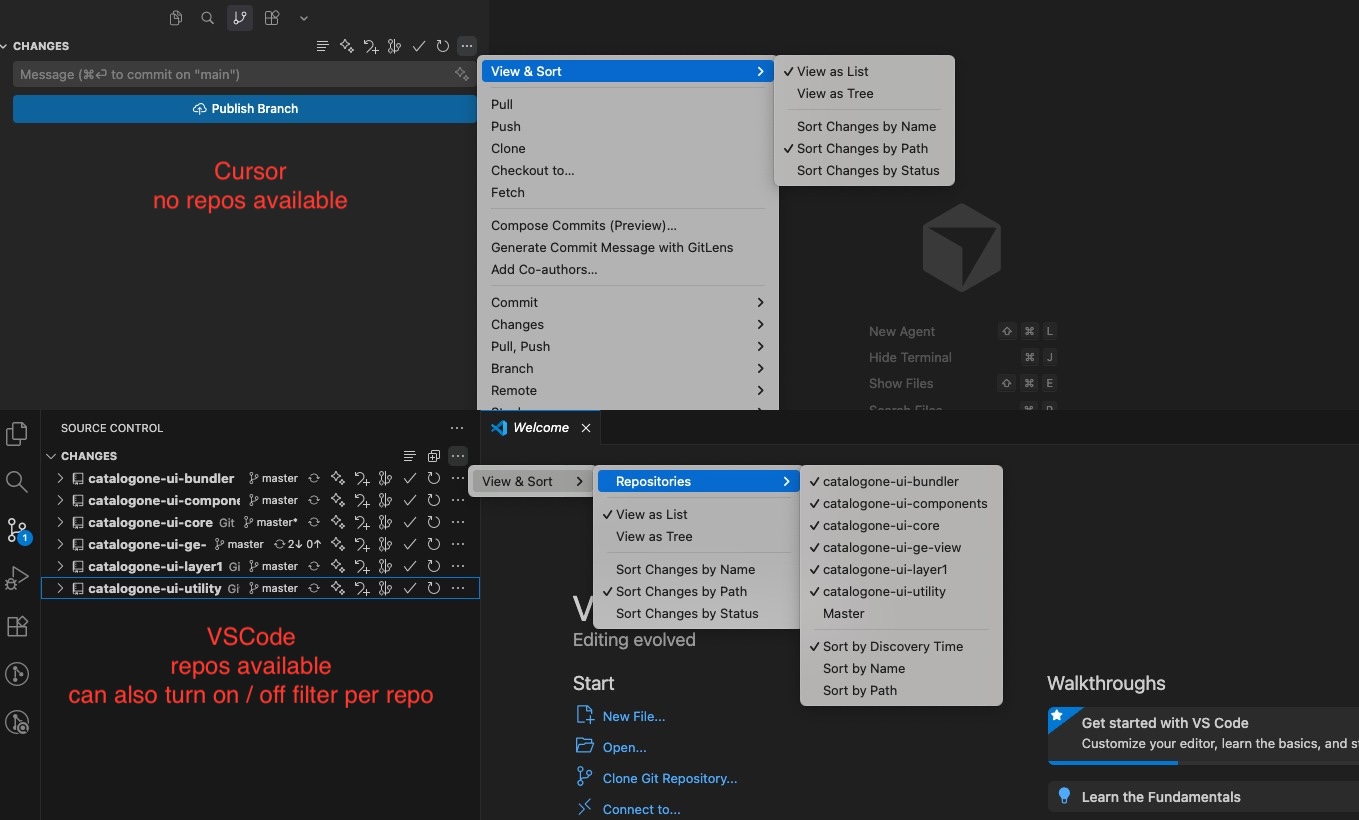
10x @deanrie
Unfortunately this have not fixed the issue.
The option was "false” (checkbox unselected), but also after marking it as “true” and restarted the IDE the source control tab is empty.
Hi @deanrie
git.autoRepositoryDetection - is set to openEditors. no change.
git.repositoryScanMaxDepth - was set to 1, changed it to 4.
git.enabled - is set to true (checked). no change.
This happens also when opening other folders / projects where I have multiple repos.
removed all git.* for the settings, no change, still do not see the source control as expected.
run the command, no change, still do not see the source control as expected.
only error i can see is “[info] error: No such remote ‘origin’“.
tried to uninstall an re-install the IDE. no change, still do not see the source control as expected. but all the settings (like proxy and mcp servers) were kept, so i don’t know if it was a “full” removal including all settings and caching.
Thanks for the thorough testing. Since the standard diagnostics didn’t help, let’s try two more steps:
Test without extensions:
Run from the terminal: cursor --disable-extensions
Open the project and check if Source Control appears
The console error “No such remote ‘origin’” might be key - does this happen across all repositories in your workspace or only some? If some repos don’t have a remote origin, that could explain why they’re not showing up.
For a clean reinstall of Cursor, do the following:
Hi @deanrie
Unfortunately the status is the same even after doing the above.
Running w/out extenstion → same issue.
Deleting cursor and renaming cursor under application support, re-installing it → same issue.
If I open each repo as a “stand alone” (i.e open the sub-folder and not the “parent” one), I can see the source control with all the data. So i don’t believe there is an issue with remote origin.
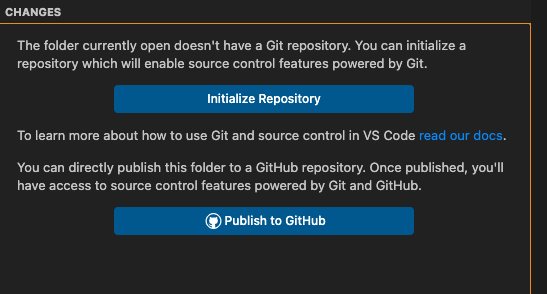
I have also created a new parent folder and cloned some repos into it, opened it as a new project, and now i see a message that the folder currently doesn’t have a git repository.
Thanks for the thorough testing - really appreciate your patience. I think I see the confusion, and what you’re seeing is expected behavior.
When you open a parent folder with multiple git repositories, Cursor/VS Code won’t automatically show all nested repos in Source Control. Instead, use a multi-root workspace.
How to set up a multi-root workspace:
File → Add Folder to Workspace (select the first repo)
File → Add Folder to Workspace (select the second repo)
Repeat for each repository
File → Save Workspace As… (save as a .code-workspace file)
Now, when you open that workspace file, all repos will appear in Source Control with their own sections, branches, and changes.
This is the recommended way to work with multiple repositories in VS Code-based editors. Does this fit your workflow?
I must say that I never worked like this, years of working with VSCode, and recently with Cursor (until latest update), I have always opened the parent folder with all the repos as sub-folders. For example open terminal in the root folder and type cursor . or code . and start working. I never had to work with a dedicated workspace. VSCode still works as before.
But at least now I can work with the project properly set up.