This guide explains how to connect AI/ML API to Cursor using the Azure OpenAI-compatible flow. You’ll get a clean setup with one endpoint, support for slashes in deployment names.
 Quick Setup
| Field | Value |
|---|---|
| Base URL | https://api.aimlapi.com |
| API Key | Your AI/ML API key (create at aimlapi.com/app/keys) |
| Deployment | google/gemini-2.5-pro (slashes allowed) |
| Alias (Model ID) | gpt-4o (Bypasses the restriction and makes Cursor work with any model*)* |
Do not add /v2/azure or /openai to the Base URL.
 Prerequisites
-
AI/ML API key
-
Cursor IDE (latest)
-
Internet access to
api.aimlapi.com
1) Configure Cursor (Azure path)
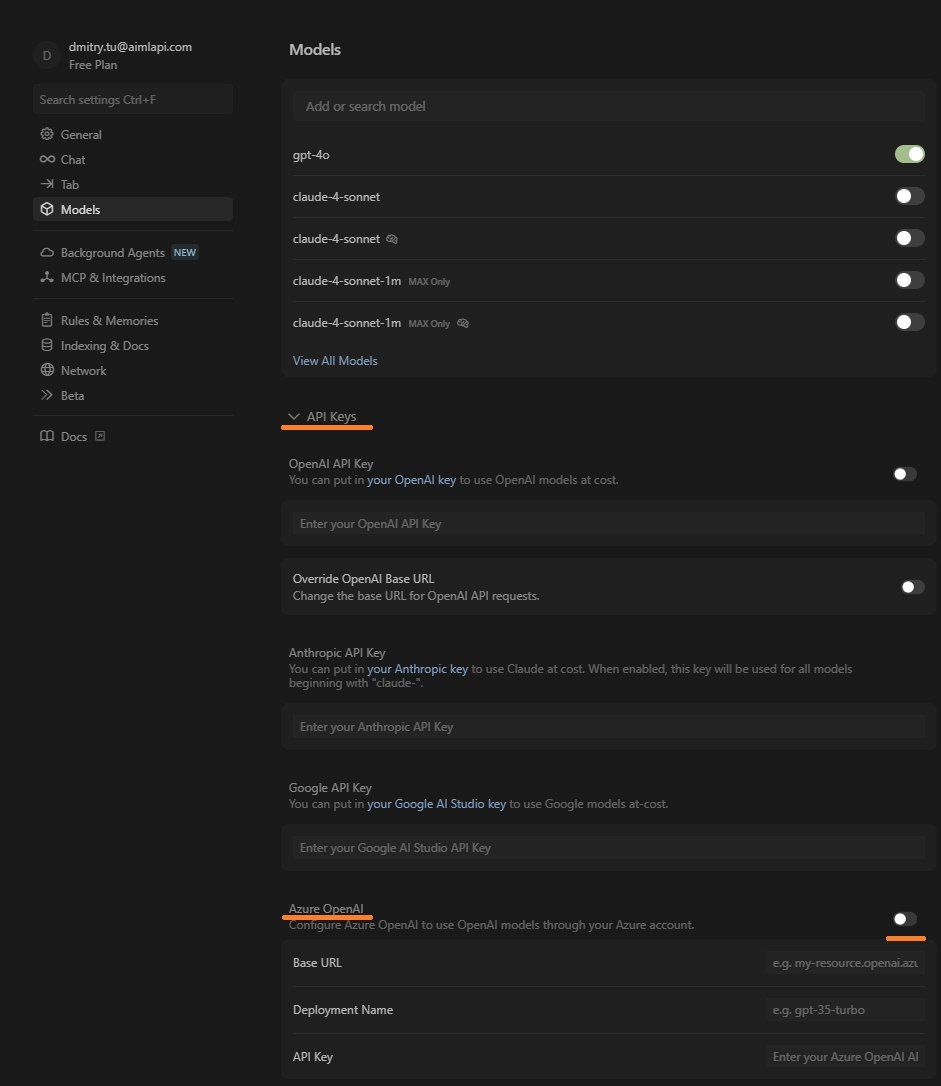
Open Cursor → Settings → Models → Azure and fill in:
Base URL
Copy
https://api.aimlapi.com
Deployment Name
Copy
google/gemini-2.5-pro
API Key Paste your AI/ML API key exactly (avoid spaces).
Click Verify to confirm.


2) Keep the model picker clean
In Cursor’s Chat model selector, only enable:
Copy
gpt-4o
This alias (Model ID) will send traffic to your deployment (google/gemini-2.5-pro).
3) How Cursor calls AI/ML API
Example request generated by Cursor:
Copy
POST https://api.aimlapi.com/openai/deployments/google/gemini-2.5-pro/chat/completions?api-version=2024-12-01-preview
Api-Key: <YOUR_AIMLAPI_KEY>
Content-Type: application/json

{
  "messages": [
    { "role": "system", "content": "You are a helpful coding assistant." },
    { "role": "user",   "content": "Write a Python function that reverses a string." }
  ]
}
Notes:
-
Deployment Nameis inserted into/deployments/<NAME>/.... -
api-versionis handled by Cursor automatically. -
Base URL stays exactly
https://api.aimlapi.com.
4) Optional smoke test
Copy
curl -sS -X POST \
  "https://api.aimlapi.com/openai/deployments/google/gemini-2.5-pro/chat/completions?api-version=2024-12-01-preview" \
  -H "Api-Key: YOUR_AIMLAPI_KEY" \
  -H "Content-Type: application/json" \
  -d '{
    "messages": [
      {"role":"system","content":"You are a helpful coding assistant."},
      {"role":"user","content":"Give me a one-line Python function to merge two dicts."}
    ]
  }'
You should receive a JSON response with choices[0].message.content.
5) Common pitfalls
-
Deployment not found → Check Base URL & Deployment Name.
-
Invalid API key → Re-copy the key, ensure it’s in the Azure section.
-
Wrong model list → Toggle Azure off/on, click Verify, restart Cursor.
-
Slashes in names → Allowed in Deployment, but keep alias short (e.g.
gpt-4o).
6) Tips for teams
-
Standardize the alias (Model ID) (
gpt-4o) so everyone sees the same thing in Cursor. -
Document your Base URL + Deployment in team wiki to avoid drift.
-
You can swap deployments later without changing the alias in UI.
Summary (copy/paste)
-
Base URL:
https://api.aimlapi.com -
API Key: your AI/ML API key
-
Deployment:
google/gemini-2.5-pro(slashes allowed) -
Alias (Model ID):
gpt-4o
With this setup, Cursor talks to AI/ML API using the Azure flow, while you keep the UI clean and consistent