yep. I noticed it was only in the wsl environment as well. It makes it borderline unusable. 
Further info:
Updated Terminal Behavior Issue Report
Problem Description
The terminal integration in Cursor became stuck in the sidebar terminal, requiring manual intervention to restore functionality. The sidebar terminal stopped responding to commands, and when switching to the full terminal, it required manual user input (hitting Enter) to progress, indicating a process blocking issue.
Steps to Reproduce
- Started a development session with the PDXtract_CLI project
- Successfully ran initial commands like
dotnet buildanddotnet testin the sidebar terminal - Made code changes to fix compilation errors
- Attempted to run
dotnet buildagain to verify fixes - Sidebar terminal became stuck - commands appeared to execute but never completed
- Switched to full terminal using
Ctrl+``(backtick) - Full terminal was blocked - required hitting Enter key to progress
- After hitting Enter, terminal resumed normal operation
Expected Behavior
- Commands should execute and return results without manual intervention
- Terminal should remain responsive and not require user input to progress
- Sidebar and full terminal should function independently
Actual Behavior
- Sidebar terminal became stuck in a “processing” state
- Full terminal was blocked and required manual Enter key press
- Commands appeared to hang indefinitely until user intervention
Commands That Failed
dotnet builddotnet build --verbosity normaldotnet test tests/Unit/CLIOutputServiceTests.cs --verbosity normalpwdGet-Locationlsecho "test"
Environment Details
- OS: Windows 10.0.26100
- Shell: PowerShell 7 (C:\Program Files\PowerShell\7\pwsh.exe)
- Workspace: /c%3A/Users/Scott/Code/PDXtract_CLI
- Project Type: .NET 9.0 CLI application
Impact
This issue prevented:
- Verifying that compilation errors were fixed
- Running tests to validate changes
- Continuing normal development workflow
- Accessing any terminal functionality without manual intervention
Analysis of Context Loss
Potential Context Loss Issues
When you hit Enter to progress the terminal, it likely caused the AI assistant to lose context about the terminal’s actual state. The assistant may have:
- Misinterpreted empty responses - The assistant saw empty command outputs and assumed the terminal was completely broken, rather than recognizing it was blocked waiting for input
- Lost process state awareness - The assistant couldn’t see that processes were hanging and waiting for user input
- Failed to detect blocking conditions - The assistant didn’t recognize that the terminal was in a “waiting for input” state rather than a “broken” state
Technical Details for Cursor Development Team
Process Blocking Detection
The terminal integration appears to lack proper detection of:
- Input waiting states - When processes are waiting for user input (like
dotnetcommands that prompt for confirmation) - Process hanging conditions - When commands appear to execute but don’t complete
- Shell state transitions - When the shell moves from “ready” to “waiting” states
Communication Protocol Issues
The terminal integration may have issues with:
- Non-blocking command execution - Commands that require user input should either be detected or prevented
- State synchronization - The sidebar terminal and full terminal may not be properly synchronized
- Process lifecycle management - Orphaned or hanging processes may not be properly cleaned up
Suggested Technical Improvements
- Input detection: Implement detection of commands that require user input and either block them or provide appropriate UI feedback
- Process monitoring: Add monitoring to detect when processes are hanging or waiting for input
- State management: Improve synchronization between sidebar and full terminal states
- Timeout mechanisms: Add timeouts for commands that appear to hang
- User feedback: Provide clear indication when terminal is waiting for user input vs. when it’s actually broken
Root Cause Hypothesis
The issue likely stems from a .NET command (possibly dotnet build or dotnet test) that encountered an error or warning and was waiting for user confirmation, but the terminal integration didn’t properly detect this state and instead appeared to hang indefinitely.
This type of issue is particularly problematic in CI/CD or automated environments where user input is not available, and the terminal should either fail fast or provide clear error messages rather than hanging.
1 Like
Sharing this here, in case it helps. I asked the AI if it could develop any rules that would mitigate this bug. Here’s its suggestion. Please add any suggestions!
And enjoy the final sentence where the AI confidently says this will work.
Terminal Blocking Issue in Cursor - Solution and Prevention Guide
The Problem
During development sessions in Cursor, the terminal integration can become blocked when running .NET commands, especially those that require user input or produce verbose output. Symptoms include:
- Terminal commands returning empty responses
- Sidebar terminal appearing stuck in “processing” state
- Full terminal requiring manual Enter key press to progress
- No error messages or feedback provided
The Solution
I created a comprehensive set of rules and memories to prevent and handle terminal blocking issues:
1. Updated .cursorrules with Terminal Handling Guidelines
Added a new section with best practices:
## Terminal and Development Environment Handling

### Terminal State Management
- Always verify terminal responsiveness before proceeding with critical operations
- Use non-interactive commands when possible to avoid blocking states
- Implement timeout mechanisms for long-running operations

### .NET Command Best Practices
- Use `dotnet build --verbosity minimal --no-restore` to avoid verbose output
- Add `--no-restore` flag when appropriate to speed up builds
- Use `dotnet test --logger "console;verbosity=normal"` for controlled test output
- Avoid commands that require user input in automated contexts
2. Created Terminal Blocking Memory in minified-file-handling-rule.md
Documented the issue and recovery steps:
# Terminal Blocking Issue Memory

## Recovery Steps
1. Switch to full terminal using `Ctrl+`` ` (backtick)
2. Press Enter to unblock the terminal
3. Verify terminal is responsive with simple commands
4. Continue with development using non-interactive flags

## Prevention
- Always use `--non-interactive` or `--verbosity minimal` flags when available
- Test terminal functionality at the start of each session with `echo "test"`
- Use file system checks as alternative to terminal output verification
3. Updated rules.md with Development Workflow Guidelines
Added comprehensive terminal handling rules for the development team.
Key Mitigation Strategies
Before Running Commands
# Test terminal responsiveness first
echo "test"

# Use non-interactive flags for .NET commands
dotnet build --verbosity minimal --no-restore
dotnet test --logger "console;verbosity=normal"
When Terminal Gets Stuck
- Switch to full terminal:
Ctrl+``(backtick) - Press Enter to unblock the terminal
- Verify responsiveness:
echo "test" - Continue with non-interactive flags
Alternative Verification Methods
When terminal is unreliable, use file system checks:
# Check if build succeeded by looking for output files
ls bin/Debug/net9.0/

# Check file timestamps to verify recent builds
stat Program.cs
Why This Works
The rules provide:
- Prevention: Non-interactive flags avoid blocking states
- Detection: Simple commands verify terminal health
- Recovery: Clear steps to restore terminal functionality
- Fallbacks: Alternative verification methods when terminal fails
Implementation
- Add the terminal handling sections to your
.cursorrulesfile - Create the terminal blocking memory in a project documentation file
- Update your development workflow to test terminal responsiveness first
- Use the non-interactive flags for .NET commands
This approach has significantly reduced terminal blocking issues in my development workflow and provides clear recovery paths when they do occur. 
CURSOR ISN’T KILLING ZOMBIE TERMINAL PROCESSES
The clue was the behavior of git-bash on windows. It only allows 16 terminal shells, then it starts stack-dumping. I had no terminals open except for one in cursor, and it starting stack dumping when i created a new one.
What does that mean?
Cursor isn’t cleaning up it’s terminal processes. Everytime you click “skip” or something similar, a zombie terminal stays alive. Sometimes you’ll see cursor complaign about a file getting modified by something else - this is probably the reason, one of the zombie terminals still working.
The only reliable work around is simply to close out cursor ide and then relaunch. This will kill the zombie terminal processes. This also makes the git-bash terminal count to 0 and makes it so it stops stack dumping.
hi @zackees is this happening just with git-bash?
I use bash and getting this error: the cursor cannot get the results of the terminal operation. I must click the skip button to get the results of the terminal operation and automatically continue to generate code for me. So, i changed to PowerShell but same.
Hello, thanks in advance
This is very common and I’m already driving myself crazy. My terminal constantly freezes, saying it’s running, and if I click Open Terminal (when that option appears), it shows me that the command has already executed, but even then, in the cursor chat, it keeps loading without any indication of when it will finish the process and move on. Could this be a configuration I’ve made? Or something I haven’t installed?

1 Like
Describe the Bug
Whenever cursor is running a terminal command, it shows running and I have to eventually hit the stop button. It will continue then.
Steps to Reproduce
run any prompt which runs commands. it is intermittent.
Expected Behavior
Terminal commands complete without intervention.
Operating System
Windows 10/11
Current Cursor Version (Menu → About Cursor → Copy)
Version: 1.3.9 (user setup)
VSCode Version: 1.99.3
Commit: 54c27320fab08c9f5dd5873f07fca101f7a3e070
Date: 2025-08-01T20:19:30.453Z
Electron: 34.5.1
Chromium: 132.0.6834.210
Node.js: 20.19.0
V8: 13.2.152.41-electron.0
OS: Windows_NT x64 10.0.26100
Does this stop you from using Cursor
No - Cursor works, but with this issue
yep, that fixed it for wsl as well (i think?). closing and ending all processes related to it.
Yes, it’s happening with git bash. It’s probably happening everywhere, but git-bash has max 32 consoles. Cursor is consuming all of them with one IDE. It goes faster with two, but unnecesary.
C:\Users\niteris\dev\fastled2>git-bash compile uno --all
0 [main] bash 41046 C:\Program Files\Git\usr\bin\bash.exe: *** fatal error - console device allocation failure - too many consoles in use, max consoles is 32446 [main] bash 41046 cygwin_exception::open_stackdumpfile: Dumping stack trace to bash.exe.stackdump
Soon as I quit-reload everything becomes fast again.
Everytime I skip a command the IDE slows down and consumes a console. Right now I’m making a build system for Arduino and I have file locks so the compile cache won’t get stomped on.
I’m constantly hitting deadlocks from zombie consoles not quitting but holding the file cache lock. It’s a very long running lock, sometimes 15 mins while code downloads and is stored into the cache.
Once I quit cursor the locks release.
1 Like
Describe the Bug
When executing a script in Terminal, After it ends, Cursor for some reason (Auto) Cant Detect that the Script Stopped Running, And is Stuck on "Running " While the script has ended…
Steps to Reproduce
run a script in terminal
Expected Behavior
Return back to me and detect script has ended instead of just waiting in terminal
Operating System
Windows 10/11
Current Cursor Version (Menu → About Cursor → Copy)
Version 1.4.1.0
Cursor
Does this stop you from using Cursor
No - Cursor works, but with this issue
I’ve noticed this too. Also, I’ve noticed that when generating cli commands, it will sometimes miss the context of where the commands should be run. For example, if you’re performing work in an api directory where that specific part of the project is built, when generating a command it will sometimes generate the command relative to the parent directory of the working directory. It can usually work itself out by running a pwa, but this can become costly.
Describe the Bug
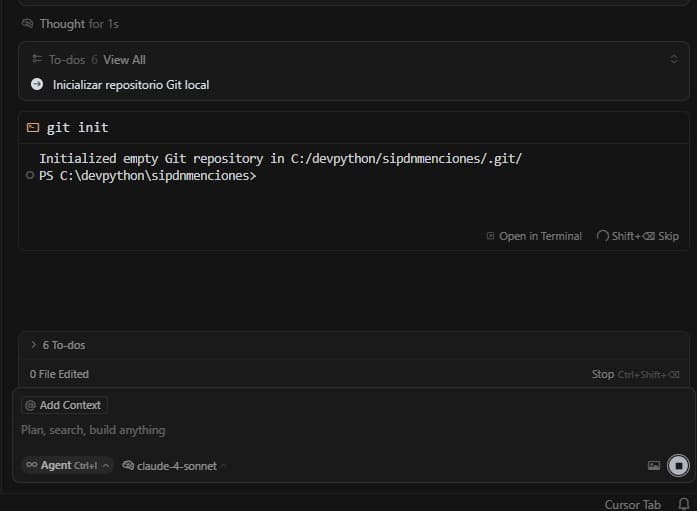
Very often, when I ask Cursor to run a command, it seems to execute it successfully in the background, but the UI never recognizes that the command has finished. It will just stay in the “running” state forever.
This issue isn’t limited to a single command; it happens with git init, activating Python virtual environments, and other common terminal operations.
The main problem is that I am forced to manually “Skip” the command. When I do this, Cursor’s AI gets confused about the project’s state, leading to errors and making it impossible to work reliably.
In the meantime, if anyone in the community has found a more reliable workaround, I’d be very grateful to hear about it.
Steps to Reproduce
- On a Windows 11 machine, open a new project folder in Cursor.
- Use the chat/AI prompt to ask for a simple terminal command. For example: “Initialize a git repository here.”
- Cursor will run the
git initcommand. - The
.gitfolder is created almost instantly in the project directory, which confirms the command worked. - Observe the Cursor UI: it will remain stuck on the “running command” step and will never complete on its own. The only way to proceed is to manually cancel or skip it.
Expected Behavior
After the command is successfully executed in the terminal, the Cursor UI should immediately detect its completion.
The “running command” indicator should disappear, and the AI should acknowledge that the task is finished, ready to proceed with the next step with the correct understanding of the project’s new state.
Screenshots / Screen Recordings
Operating System
Windows 10/11
Current Cursor Version (Menu → About Cursor → Copy)
Version: 1.3.7 (user setup)
VSCode Version: 1.99.3
Commit: 5d56108ff2401c28f239aa2a527ef424ce7719a0
Date: 2025-07-31T04:16:31.276Z
Electron: 34.5.1
Chromium: 132.0.6834.210
Node.js: 20.19.0
V8: 13.2.152.41-electron.0
OS: Windows_NT x64 10.0.26100
Additional Information
I want to emphasize that this bug is not limited to simple, one-off commands. It becomes a critical issue when Cursor runs more complex commands as part of an agent-like workflow.
In those situations, I have no way of knowing if a command is genuinely taking a long time to run or if it’s just stuck due to this bug. If I decide to cancel it, the entire AI workflow breaks. Cursor proceeds as if the command was successful, gets completely lost, and starts “hallucinating”, making the agent feature unusable.
I have been actively researching this and found other users with similar issues. For instance, the suggestions in this thread point towards problems with how terminal sessions are handled, but even the proposed workarounds seem unreliable for now:
Does this stop you from using Cursor
Sometimes - I can sometimes use Cursor
hi @cprieto64 and welcome to Cursor Forum.
Thank you for posting a detailed bug report. We are looking into this issue.
I encountered the same problem, which is very frustrating and causes command line instructions to be lost. Why doesn’t the version update have an option for free choice and rollback? Do you expect paying users to do your testing work?
We are investigating!
1 Like
Same issue for me. It randomly does it. Sometimes click on “Open in terminal” window helps, sometimes it’s when we click the “Focus” button that appears after openning in terminal windows. But alot of times, it gets stuck and I have to resend my previous request.
It’s not just intermittent for me, it’s been happening almost constantly all day! I have been pasting terminal output into the chat window to keep going. Not sure if there is a better way.
I’ve same issue, both in Windows and MacOs.
1 Like
same for me upvoting
1 Like