Auto-Mode is not available

Describe the Bug

Auto-Mode Model disappear on my Cursor, even if I have cleaned all API keys.

Steps to Reproduce

Try to select auto-mode model when using agent.

Screenshots / Screen Recordings

Operating System

MacOS

Current Cursor Version (Menu → About Cursor → Copy)

Version: 1.2.4 (Universal)
VSCode Version: 1.99.3
Commit: a8e95743c5268be73767c46944a71f4465d05c90
Date: 2025-07-10T16:55:16.443Z
Electron: 34.5.1
Chromium: 132.0.6834.210
Node.js: 20.19.0
V8: 13.2.152.41-electron.0
OS: Darwin arm64 24.5.0

Does this stop you from using Cursor

Yes - Cursor is unusable

1 Like

Hey, do you have an API key enabled? Usually, this option disappears when the API key is enabled.


I have already cleaned my API keys, but it is still not available.

@Mo_LIU could you please restart Cursor to ensure it takes the new settings

I have tried restarted Cursor several times.And even reinstall Cursor. It stills doesn’t work. Also, it is weird that when I restart Cursor, API keys which I have cleaned comes back. And I don’t know how to save the setting…

cc @danperks

I don’t see the “Auto” option as well. I think I actually never have. All API keys are removed and sections disabled.

That last “Test Model” gets populated automatically or doesn’t save, can’t remove the content - it gets reverted to same value after Cursor restart.

How it looks on my side:

I believe it should be similar toggle option like “MAX Mode”. Found this in docs:

Just updated:
Version: 1.2.4
VSCode Version: 1.99.3
Commit: a8e95743c5268be73767c46944a71f4465d05c90
Date: 2025-07-10T16:59:43.242Z
Electron: 34.5.1
Chromium: 132.0.6834.210
Node.js: 20.19.0
V8: 13.2.152.41-electron.0
OS: Linux x64 6.15.3-1-MANJARO

2 Likes

I’m seeing this as well. API Keys completely empty, Auto mode still not available.

I imagine there’s config cached somewhere we could delete that would fix this?

2 Likes

I suspect that this error occurred due to a previously used API key, and somehow, even though the API keys are inactive, Cursor seems to recognize them as active. You can try reinstalling Cursor to see if that fixes the issue. You need to delete one folder. You can also just rename it. A new one will be created upon reinstallation, and if needed, you can restore the folder to bring back your previous Cursor settings.

You need to delete the folder at these paths:

Windows: %APPDATA%\Cursor\
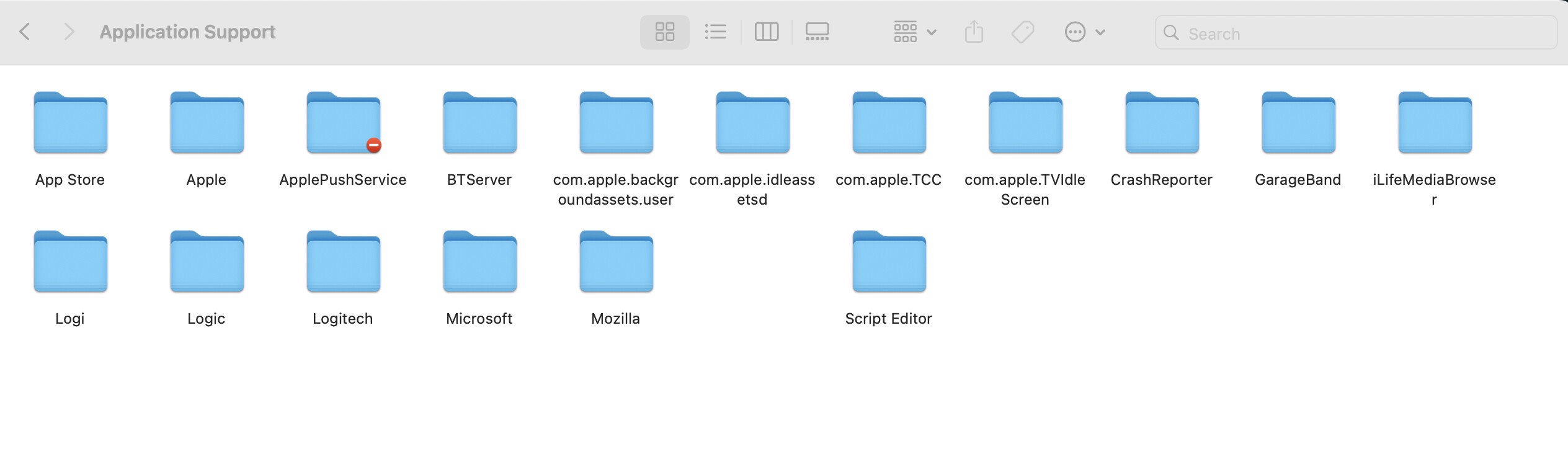
macOS: ~/Library/Application Support/Cursor/
Linux: ~/.config/Cursor/
1 Like

This totally worked. Steps to fix for anyone else who runs into this problem:

  1. Rename that folder to whatever (Cursor_backup_[date])
  2. Quit and restart cursor
  3. You’ve lost your settings but regained your ability to use Auto mode
2 Likes

So the only option is to delete all your Cursor (and its extensions) settings and other state? Is this the official “solution”? :face_with_raised_eyebrow:

1 Like

hi @Kirai could you try if creating a new project shows Auto for you?

If that works, then you would not need to clear all settings. Renaming the project folder ask mentioned by previous post could solve that on your project. Note that renaming project clears Chat history, but you can export chats or use SpecStory Extension.

In case that does not work you may need to clear settings.

Also, check if you might have an API key enabled. When any API key provider is enabled, the auto mode option disappears.

Hello, if you mean creating a new directory and opening a new Cursor instance in it, then no, sadly it still doesn’t show Auto mode.

Also, check if you might have an API key enabled. When any API key provider is enabled, the auto mode option disappears.

I checked many times, even tried filling some random strings, enabling, disabling and restart Cursor (closed all Cursor instances), it doesn’t seem to change anything :disappointed_face:.

1 Like

I have a solution that does not affect IDE settings and extensions. You will need an SQLITE reader - open the file ~/.config/Cursor/User/globalStorage/state.vscdb

In the ItemTable table, find the row with the key: src.vs.platform.reactivestorage.browser.reactiveStorageServiceImpl.persistentStorage.applicationUser

select * from ItemTable where key = 'src.vs.platform.reactivestorage.browser.reactiveStorageServiceImpl.persistentStorage.applicationUser';

However, when I was looking for a solution to the problem, I used the query:

select * from ItemTable where value like '%gpt%';

The value column contains a JSON with settings, including the aiSettings object, which I deleted. After that, in my Cursor, the model mode was set to Auto, and the default models were selected in the settings. It seems that my other settings were not affected, and that completely suits me.

I hope this will be useful to other users, as well as to developers who may take this into account in future versions.

3 Likes

This looked so promising. Tried it, and nothing changed? I thought my AI settings (in Models tab in cursor settings) would get reset, but I still see o3-mini and K2 which I think are not on by default. Either I messed up something in editing it, or it is some different file on my install? :disappointed_face:

I can’t reproduce the problem right now - auto mode doesn’t disappear, but I change the standard model selection, close Cursor, delete aiSettings section, launch Cursor, and the section is restored at the end of the JSON object. That’s how it looks to me:

    "aiSettings": {
        "cmdKModel": "default",
        "terminalCmdKModel": "default",
        "composerModel": "default",
        "backgroundComposerModel": "claude-4-opus-thinking",
        "composerPreviousNonDefaultModel": "claude-4-sonnet",
        "modelsWithNoDefaultSwitch": [
            "claude-3.7-sonnet-thinking-max",
            "claude-3.7-sonnet-max",
            "gemini-2.0-flash-thinking-exp",
            "gemini-2.0-flash",
            "gpt-4o-mini",
            "claude-3.5-haiku",
            "deepseek-v3",
            "deepseek-v3.1",
            "deepseek-r1"
        ],
        "modelDefaultSwitchOnNewChat": false,
        "completedModelMigrations": [
            "20250507-bc-o3-max-mode-migration-dev-only",
            "20250528-claude-4-opus",
            "20250612-bc-sonnet-max-mode-migration"
        ],
        "modelSettingToMaxMode": {
            "background-composer": true,
            "composerModel": false,
            "backgroundComposerModel": true
        },
        "modelOverrideEnabled": [],
        "teamIds": [],
        "lastDefaultModelNudge": "1749756077899",
        "usageHardLimit": 0,
        "isUsagePricingEnabled": false
    }

Maybe something is affected by the operating system or the Cursor version? I have Ubuntu 24.04 and Cursor 1.3.9 (AppImage)

2 Likes

@Kirai Sorry to hear that the suggestion above did not resolve your issue.

You may need to be clearing app data (settings) on your device.

  • Please make sure to have a backup of the folders listed in the guide.
  • Update to the latest Cursor version first.

See Docs > Troubleshooting guide > Clearing app data


i don’t have this folder

and i don’t have enabled api keys.

You have entered the root folder, but you need to go to the home directory, which is ~/your-name/Library/Application Support.

1 Like